Organising a diagram
Containers
A container is a labelled box you draw around a group of components — the optics on one bench, the detection electronics, a servo rack.
Insert one with ⌘G, or from the component bar (Misc → Container). Drag its edges to
resize; drag the container itself and everything inside moves with it, which is the
whole point. Give it a label in the properties panel like anything else.
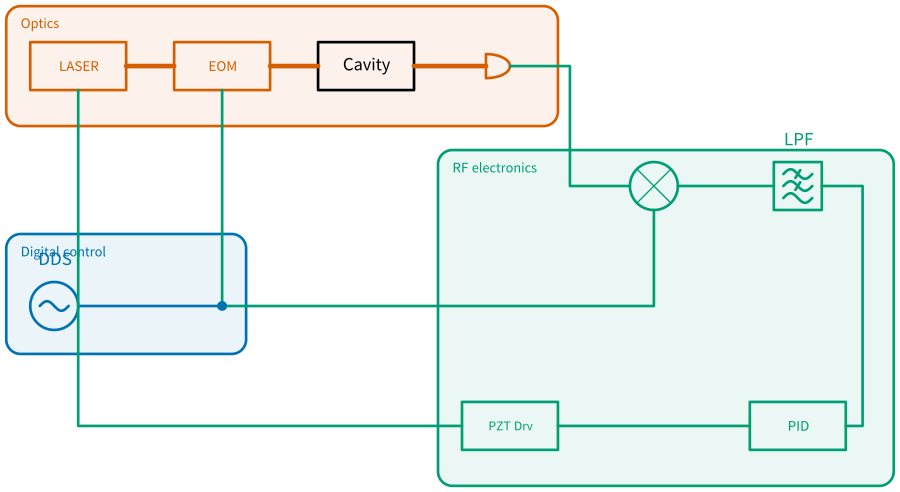
laser_lock.dsd — the same setup grouped into optics, detection and servo.
Containers are what turn a correct diagram into a readable one. A cross-domain setup with twenty components reads as chaos until the three subsystems are boxed, and then it reads as three things talking to each other.
Aligning and distributing
Select two or more symbols, then Edit ▸ Arrange:
| Align left / right / top / bottom | ⌃⌥← ⌃⌥→ ⌃⌥↑ ⌃⌥↓ |
| Distribute horizontally / vertically | No shortcut |
Align snaps the selection to a common edge; distribute spaces them evenly between the two outermost. Each is a single undo step.
You will need these less than you expect. Everything snaps to the grid as you place it, and dragging out of a port lines the new symbol up on the axis you dragged along — so a chain built that way is already straight. Arrange is for tidying a layout that grew organically, not for building one.
The grid
View ▸ Show Grid (⌘') toggles the graph paper. It is remembered between sessions.
The grid is only ever a drawing aid: it is not part of the diagram, and it never appears in an export. Turning it off is about what you are looking at — which is why it is remembered per person rather than saved in the file. Two people opening the same diagram should not fight over whether the grid is on.
Snapping is separate, and stays on: it is a property of the drawing, not of the view.